From a TradingView alert to an options order with PickMyTrade
An AAPL chart alert can tell you when to act. Which call should the broker receive? Compare IBKR, TradeStation and Tradier, then follow one AAPL call from strike selection to a paper exit.
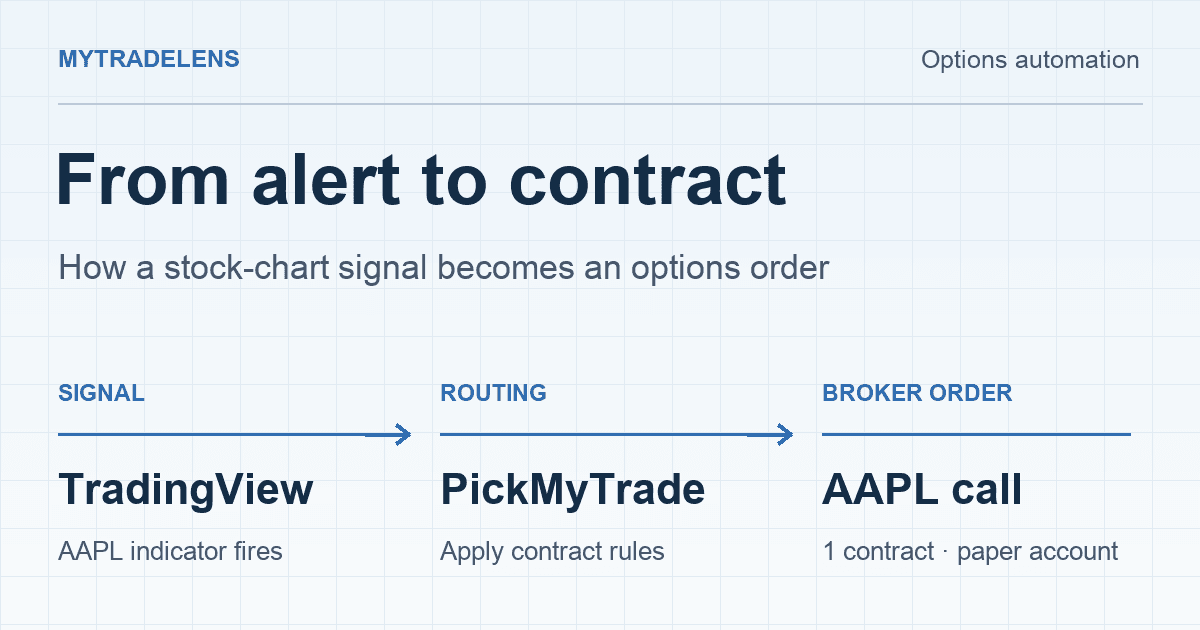
Suppose an indicator fires on the AAPL stock chart. You want to buy a call. Before the broker can act, someone still has to choose a strike, an expiration and a number of contracts. PickMyTrade lets you set those rules in advance and route the resulting order from a TradingView alert without writing your own broker API integration.
Choose the guide for your broker
Interactive Brokers (IBKR)
PickMyTrade documents equity options and options on futures. Select the matching instrument in the alert generator. For the Trader Workstation connection, keep TWS logged in and the PickMyTrade IB application running and connected. Start with the IBKR connection guide, then follow the instructions for indicator alerts or strategy alerts.
TradeStation
TradeStation supports stock options through both indicator and strategy alerts. For an indicator, configure the call or put and the action to take when the condition fires. For a strategy that already sends exit instructions, check how the generator handles those exits before attaching a stop or target. See the stock-options indicator guide and strategy setup guide.
Tradier
PickMyTrade lists the Tradier connection as beta. Its indicator guide shows how to select a single equity call or put, including an AAPL example. Its options overview also lists spreads, but we could not verify which multi-leg orders are available in a particular beta account. This walkthrough uses one leg. See the Tradier indicator guide, connection status and options overview.
Configure an AAPL call in a paper account
This example uses a Tradier demo account and a TradingView indicator on the underlying stock. The same decisions apply elsewhere, but sizing, order types and exit settings vary by broker and instrument.
- Connect the test account. Choose Demo when connecting Tradier in PickMyTrade, then confirm the destination account in the alert generator. Follow the Tradier connection guide.
- Define the entry. Select AAPL equity options, Call, a buy action and a fixed quantity of one contract. Choose an available expiration rule. Check the date it resolves to against the broker’s listed expirations.
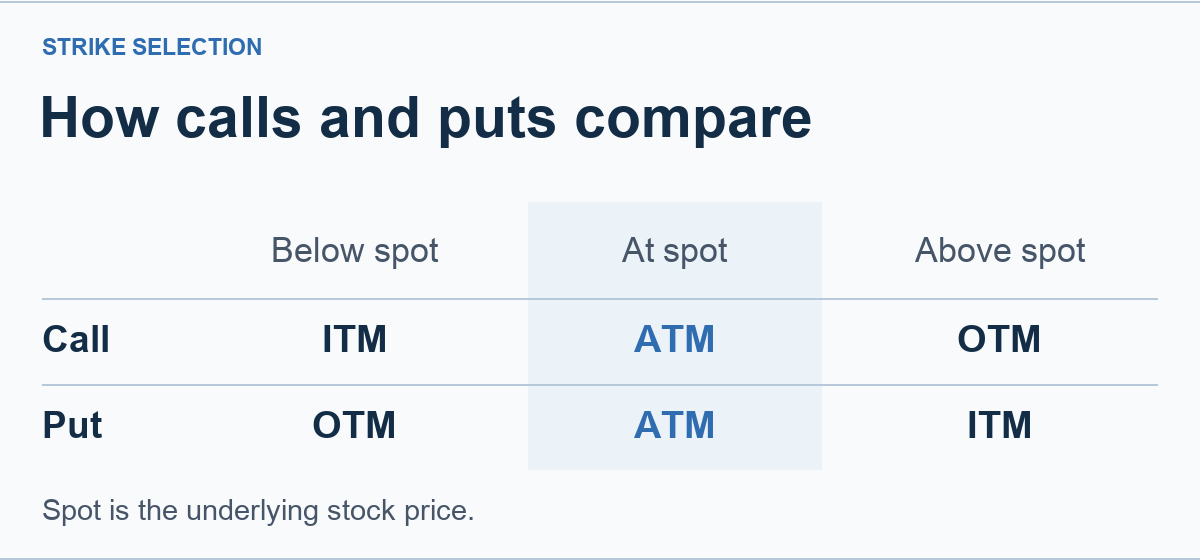
- Choose the strike. For this test, use at the money (ATM), the listed strike nearest the underlying price. To test an offset later, an out-of-the-money (OTM) call has a strike above the stock price and an in-the-money (ITM) call has one below it. Those directions reverse for puts. Inspect the listed strikes for that expiration before interpreting an offset as a dollar amount.
- Create the TradingView alert. Select the indicator condition on the AAPL chart. Paste the generated PickMyTrade message into the alert’s message field and the supplied webhook URL into its notification settings. Use a TradingView plan with webhook support and enable two-factor authentication. See TradingView’s webhook instructions.
Follow the entry and test the close
When the indicator triggers, TradingView sends the message and PickMyTrade routes the configured order. Check delivery in TradingView’s alert log, then look for the request in PickMyTrade. At the broker, read back the account, AAPL symbol, call, strike, expiration and quantity. If the broker shows a fill, record the option premium. The price on the AAPL chart is the price of a share.
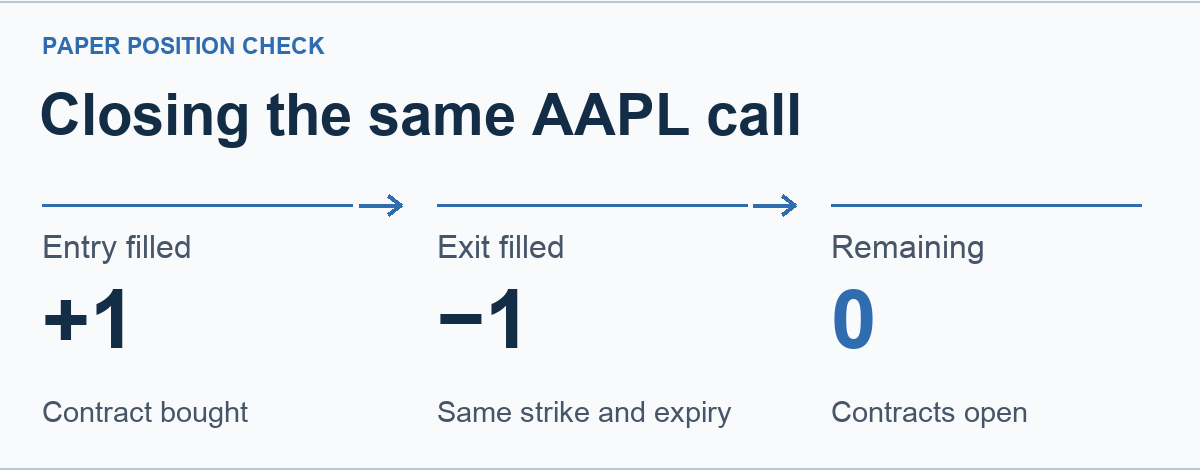
After the paper entry fills, use a separate alert configured with the supported Close action. Check which existing position it targets. A stock move can change which strike qualifies as ATM between entry and exit. Confirm the broker closed the original strike and expiration and check the remaining quantity. If the order is still working or was rejected, check open orders and positions before sending another alert.
Review the broker fills in your journal
Save the alert time, the contract rule you chose and the contract your broker filled. For supported trade history, MYTRADELENS is a separate journal for reviewing those fills after execution. Check the supported import methods for your account. Our earlier PickMyTrade guide covers how to reconcile the alert, order and broker record across a full trading session.
Options and automation risk
This paper example illustrates configuration and is for education only. An option buyer can lose the full premium. An uncovered call writer faces potentially unlimited loss. Webhook delivery can fail, brokers can reject orders, and exits can fill partially or at a different price than expected. Monitor the broker account while alerts are active. Neither an alert nor a paper fill guarantees live execution or profit. Read the Options Industry Council’s overview of options risks.