PickMyTrade and TradingView: from automation to trade review
A practical look at TradingView automation with PickMyTrade, plus a clear workflow for reviewing broker-confirmed trades in an independent trading journal.
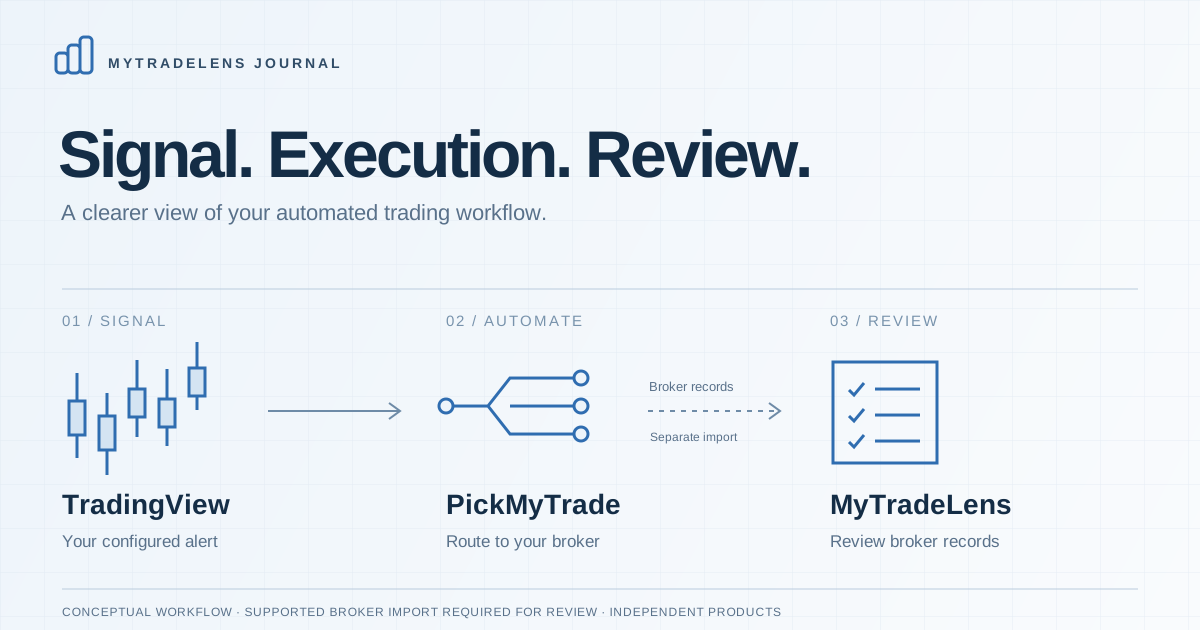
An automated trade still leaves you with human questions. Did the alert fire when you expected? Did the intended account receive the order? What actually filled, and what should you revisit before the next session? A useful trading workflow keeps those questions connected, from the original signal to the broker’s record and your own review.
This guide looks at how PickMyTrade fits into TradingView automation, then walks through a separate process for bringing completed trades into a journal such as MyTradeLens. The goal is a clearer record of what your system intended and what your account experienced.
What PickMyTrade does
PickMyTrade is a trade-automation service. In its documented TradingView workflow, an alert sends a webhook message to PickMyTrade, which processes the instructions for a connected, supported broker account. Its TradingView automation guide describes strategy, indicator, and alert-based setups.
TradingView provides the alert conditions. PickMyTrade handles the automation step. The broker processes the resulting order and supplies its status and fills. Broker availability, supported features, account permissions, and setup requirements depend on the route you use, so follow PickMyTrade’s current instructions for your particular account.
Follow the trade from signal to fill
One trade. Four distinct stages.
- 01The signalTradingView
Your configured alert sends a message when its condition triggers.
- 02The routingPickMyTrade
The automation service processes the message for your connected broker.
- 03The executionYour broker
Order status and actual fills establish what happened in the account.
Bring completed trades in through a supported broker connection or CSV import, then review the records and your notes.
Conceptual workflow. The review step uses broker records; it is not a direct PickMyTrade-to-MyTradeLens connection.
A webhook is a message sent to another application when an event occurs. TradingView’s webhook documentation explains how an alert sends an HTTP request to a configured URL. It also notes that delivery can fail and that webhook status is available in the alert log. TradingView requires two-factor authentication for webhook alerts.
An alert log and a broker fill answer different questions. The first helps establish that a signal was generated or sent. The second establishes what was executed. Keep both when investigating an unexpected trade, and include the relevant account, symbol, quantity, and time range in your comparison.
Start with a small, observable setup
Before using an unfamiliar automation configuration with a live account, make the workflow easy to follow. PickMyTrade’s strategy setup documentation recommends testing in a demo environment. A focused test is also easier to review afterward.
- Confirm the intended broker account and environment. Keep demo and live records clearly identified throughout your review.
- Record the strategy or indicator settings you are testing, including the symbol, timeframe, intended quantity, and exit logic.
- Use the alert message and webhook destination generated for your chosen PickMyTrade setup. Check current platform requirements in the official documentation.
- Follow a test entry and exit through the alert log, automation log, and broker history. Inspect the actual order status and fills at each step.
- Write down any difference you cannot explain. Resolve account selection, timing, and quantity mismatches before expanding the setup.
Protect your setup credentials as you would other account access. TradingView specifically advises against including login credentials or passwords in a webhook message. Follow each provider’s instructions for any authentication token it requires, and redact secrets before sharing logs or screenshots.
Put the broker record at the center of your review
The price on a chart, the price inside an alert, and the price of a broker fill can differ. A review becomes more useful when it separates those observations instead of treating them as the same event. Record the intended behavior alongside the actual result, then investigate a specific mismatch.
Put intention beside execution.
A useful journal explains the difference.
PlanAlert condition and intended entry
RecordActual fill price and timestamp
PlanIntended contract and quantity
RecordFilled quantity, including partial fills
PlanThe strategy’s exit rule
RecordClosing fills and the final position
PlanThe assumptions in your test
RecordRecorded commissions and available fees
A review framework, not a live trade report or a performance claim.
Start with completeness. A partial export may omit the opening fill, a partial exit, or a position carried into the selected date range. Timezone differences can also make matching records look unrelated. Check the original broker history before interpreting a journal total or assigning a cause to a result.
Then check costs. Distinguish gross trading P&L from a result that includes recorded commissions and fees. If a file does not supply the full cost picture, keep that uncertainty visible. A missing fee is a missing input, not evidence that the trade was free to execute.
Bring completed trades into MyTradeLens
Choose a supported import route that matches your broker, asset class, and account platform. Review the records available through that route before assuming that every trade in an automation log can be imported. MyTradeLens reads supported trade records; this article does not describe a PickMyTrade alert feed into the journal.
For the supported Lucid, Apex, and Tradeify futures CSV workflows, MyTradeLens accepts the documented NinjaTrader desktop Executions or Rithmic R|Trader Pro Completed Orders formats. Choose the correct firm, inspect the detected accounts, and confirm the import destinations. Another platform’s CSV can have a different structure even when the account trades the same contract.
Once the records are available, add context in your dated journal notes: the strategy version, the alert configuration, what you expected, and the observation you want to revisit. Consistent journal tags can help you find related notes later. Describe each label clearly so its meaning remains useful across sessions.
Make the weekly review answer three questions
A repeatable review gives individual observations somewhere to go. Pick a consistent date range and account scope, reconcile the records, and use the same questions each time. The weekly trading review guide offers a broader routine you can adapt.
- Did the system behave as configured? Compare the saved settings with the actual entry, size, exit, and account selection. Keep configuration problems separate from a trade that simply closed at a loss.
- What explains the difference between intention and execution? Look at timestamps, partial fills, order status, costs, and any intervention. Record uncertainty when the available evidence does not establish a cause.
- What deserves another controlled test? Choose a specific, measurable question for the next review. Keep the settings and sample clearly labeled so you can distinguish a new observation from an earlier configuration.
A useful review connects the rule you wrote, the trade your broker recorded, and the question you want to answer next.
A short run of wins or losses is only part of the picture. Keep the sample size, market conditions, account rules, and any changes to the setup beside your conclusions. A journal organizes evidence and supports reflection; it does not guarantee profitable trading.
Explore the workflow
Visit PickMyTrade to explore its TradingView automation tools and current broker-specific setup guides. For independent post-trade review, explore MyTradeLens, check the supported imports, and start with a small history sample you can reconcile against the original records.
PickMyTrade, TradingView, and MyTradeLens are independently operated products. There is no direct PickMyTrade-to-MyTradeLens integration or formal partnership announced by this article. The diagrams are explanatory illustrations, not screenshots, live account data, or performance results.
Sources and further reading
- PickMyTrade website: current product information and broker-specific resources.
- TradingView automation overview: PickMyTrade’s explanation of the alert-to-broker workflow.
- Automating TradingView strategies: setup documentation and demo-testing guidance.
- TradingView webhook alerts: delivery behavior and account security requirements.